Key takeaways
- Confirm device and carrier unlock
- Set travel line for mobile data
- Review home-line roaming charges
An eSIM iPhone setup can put prepaid travel data on a separate cellular line without removing your normal number, provided the iPhone supports eSIM and is unlocked for the service. The key choices are which profile supplies mobile data and whether the home line stays active for conventional calls or SMS. Installing a travel profile does not automatically cancel your existing subscription or prevent its roaming charges.
Before starting an eSIM iPhone installation, check the exact model and region, carrier lock status, plan coverage and activation timing. Apple says supported iPhones can keep two eSIMs active on eligible models, but hardware and regional variants differ. Do not rely only on the phone's marketing family name.
How Do You Check eSIM iPhone Compatibility?
An eSIM iPhone compatibility check starts with the model, sales region and software. Apple generally supports eSIM on iPhone XS, XS Max, XR and later eligible models, with significant regional exceptions. Some devices are eSIM-only, while others combine a physical tray and digital profiles.
Open Settings, then Cellular, and look for Add eSIM. Check General → About for the device's technical information. The availability of EID can help identify digital-SIM hardware, but it does not by itself prove that a specific foreign network or provider will work.
Confirm the exact model variant against current Apple documentation when traveling with an imported phone. Regional restrictions matter, including particular devices sold for mainland China, Hong Kong and Macau.
For an eSIM iPhone purchase, confirm the actual sales region rather than assuming that a familiar model name guarantees the same SIM hardware worldwide. The eSIM iPhone features offered in one market may differ from another's configuration. Check the model identifier, carrier policy and supported cellular bands in official documentation. This is especially important when using an imported or secondhand device. A compatible screen menu is a useful clue, but it cannot replace verification of the service's actual network requirements.
How Can You Check Your iPhone Carrier Lock?
An eSIM iPhone must generally be carrier-unlocked to accept a travel profile from another carrier. Open Settings → General → About and find Carrier Lock. Apple indicates that an unlocked device shows No SIM Restrictions.
If the field indicates a restriction, contact the current carrier about eligible unlocking. Simply installing another profile does not remove a carrier lock. Do not pay for an unsupported travel product while assuming that a software menu can bypass the issue.
Unlock status and network-band support are separate checks. A technically compatible unlocked phone still needs local network support at its destination.
An eSIM iPhone that is carrier-locked may show Add eSIM while rejecting a competing operator's profile. The correct remedy is to ask the issuing carrier about unlock eligibility, not to scan the activation code repeatedly. An eSIM iPhone unlock check should happen before payment, because refund policies vary after installation attempts. Also confirm that the destination country is supported and that the phone's software is up to date enough for the provider's setup method.
Keep Home and Travel easy to distinguish
1Before purchase
Check the exact model and carrier-lock status.
2Install
Use the provider’s instructions with reliable internet.
3Label
Name the lines so you can recognize Home and Travel.
4Select
Choose your data line and follow each provider’s roaming instructions.
How Do You Install a Travel Profile?
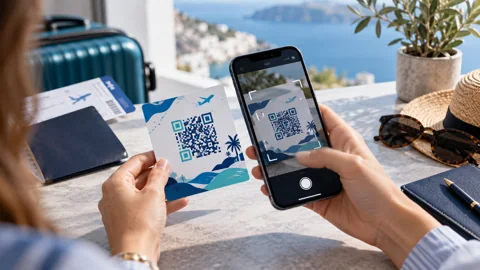
An eSIM iPhone profile can be installed through a provider QR code, supported app, carrier link or manual activation information, depending on the service. Use a reliable internet connection during setup. Check whether downloading starts the paid validity before beginning.
A common QR sequence is Settings → Cellular → Add eSIM followed by the provided instructions. On supported iOS versions, Apple also allows certain QR codes received in email or a browser to be installed by pressing and holding the code. Do not use unknown third-party scanners for account activation.
Keep the issuer's installation instructions accessible offline. Never publish the QR code, because it may contain sensitive provisioning information and may not be reusable.
An eSIM iPhone QR code is not a reusable travel password. Treat it as sensitive provisioning information and keep the purchase email private. If your eSIM iPhone installation fails halfway through, check whether a partially installed profile already appears in Cellular settings before beginning again. Use official app or manual activation steps only when the issuer supports them. Avoid deleting a profile or resetting the device simply because the first attempt did not immediately connect abroad.
How Should You Label Home and Travel Lines?
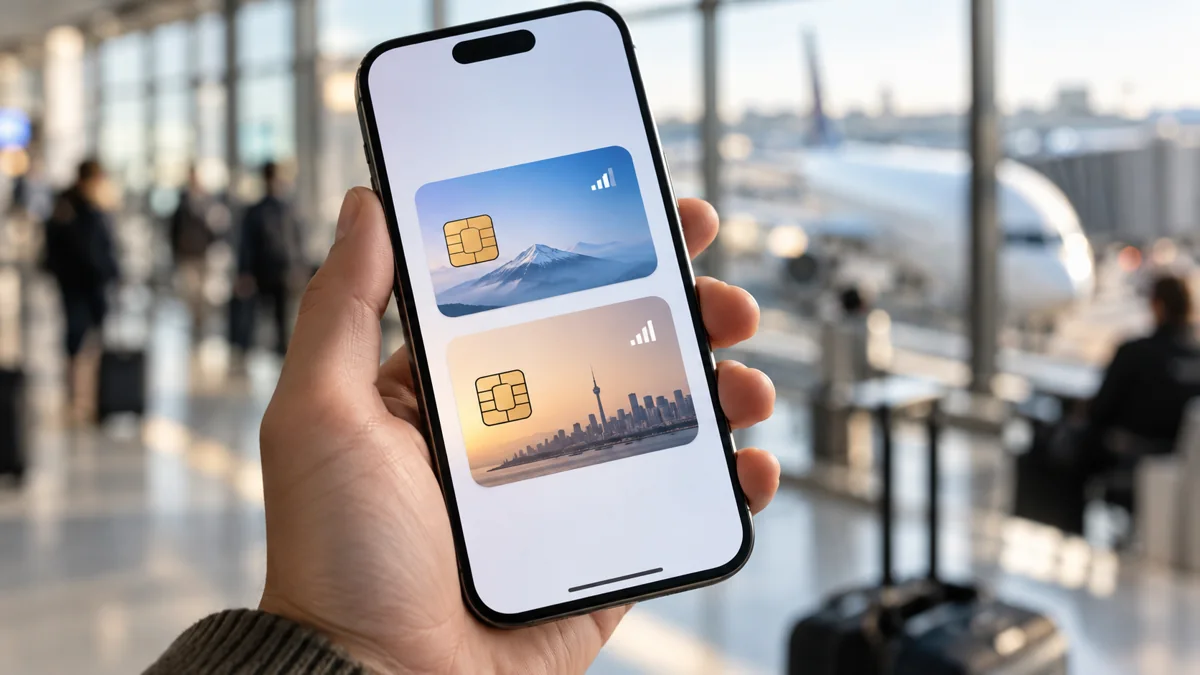
An eSIM iPhone configuration is easier to manage when the regular subscription is labeled Home and the travel profile is labeled Travel. Distinct labels reduce accidental selection of the wrong line. The number of stored and simultaneously active profiles varies by model.
Keep the original number associated with its home subscription. Adding a travel data line is not the same as porting a number or changing the phone's registered contact number. A data-only travel profile typically does not provide a conventional local number.
Review the installed lines before departure. Knowing which profile is which makes troubleshooting much easier when arriving in a new country.
The eSIM iPhone line labels should make it obvious which subscription handles normal calls and which handles prepaid travel data. For example, a separate eSIM iPhone Travel label prevents confusion when the phone presents several profiles with unfamiliar network names. Labeling does not alter billing, but it reduces accidental selection. Before leaving home, review the selected default voice line and the data line so you know which services remain active on arrival.
Which Line Should Supply Cellular Data?
For an eSIM iPhone travel setup, choose the Travel profile as the intended Cellular Data line if that is the package you bought for internet abroad. Open Settings → Cellular → Cellular Data and select it. The phone may also offer Allow Cellular Data Switching, which needs careful consideration.
Automatic switching can permit another line to supply data under certain circumstances. This could create charges through the home subscription if its roaming terms apply. Travelers trying to limit unplanned fees should check the feature deliberately instead of leaving settings unexplained.
| iPhone setting | Practical check |
|---|---|
| Cellular Data | Choose intended travel line |
| Default Voice Line | Keep appropriate calling number |
| Allow Cellular Data Switching | Understand charge implications |
| Travel Data Roaming | Follow travel provider instructions |
| Home Data Roaming | Review home carrier costs |
| Line labels | Identify Home and Travel clearly |
| iMessage / FaceTime | Check account and number registration |
The prepaid travel connection covers its own data terms, not the home line's potential voice or SMS costs.
An eSIM iPhone data setup can allow the original number to remain registered while internet access runs over the travel profile. But an eSIM iPhone home line can still create roaming charges for conventional calls, voicemail or certain messages. Check the carrier's international rules before enabling services. Automatic cellular switching deserves particular care, because the phone may use a different line than expected. Data-only eSIM packages do not automatically prevent charges on unrelated subscriptions.
When Should Data Roaming Be Enabled?
Some international eSIM iPhone travel profiles require Data Roaming on the travel line because they register with destination partner networks. This is normal for certain roaming-based products. The setting must follow the issuer's instructions rather than a universal on-or-off rule.
Do not confuse the travel line's roaming setting with the home line's. Enabling roaming on an unrelated domestic plan can have billing consequences. Review both settings separately.
If the phone shows signal but cannot load pages, check the selected data line and provider-supplied APN instructions before changing unrelated settings. Incorrect APN values may prevent data access.
Some travelers incorrectly disable roaming on the travel line because they want to avoid roaming charges on the home line. A travel eSIM iPhone profile may require its own roaming setting to access partner networks, and that is not the same as enabling data roaming for the primary account. In an eSIM iPhone setup, review each line independently. Apply the issuer's APN and network instructions only to the intended profile. Changing unrelated settings can create additional troubleshooting problems.
How Do You Keep iMessage and SMS Working?
An eSIM iPhone can use travel cellular data for internet-based messaging while the home number remains associated with an active supported line. Apple documents use of iMessage and FaceTime in travel dual-SIM configurations. Ordinary SMS is different because it depends on a cellular messaging service.
A data-only travel profile generally does not receive conventional banking text codes. Keeping access to the home line may be necessary for verification, subject to its carrier's roaming and billing policy. Configure authenticator alternatives before travel when supported.
Avoid unnecessarily changing Apple account number registration while abroad. If re-verification is needed, it may require access to the original number. Retaining the home subscription does not automatically mean every SMS will be free.
An eSIM iPhone can keep internet messaging working through prepaid travel data even when the travel profile has no conventional phone number. However, the eSIM iPhone setup does not create the cellular SMS service needed for some verification codes. Prepare authenticator methods and confirm your home carrier's inbound-message rules before departure. Changing the Apple account's registered number unnecessarily can make an otherwise simple trip more complicated if re-verification becomes necessary.
Why Does an iPhone Show No Service Abroad?
An eSIM iPhone showing No Service may be outside the purchased destination, unable to register on a partner network or using an inactive travel profile. A profile can also be installed successfully before the validity begins. First check destination coverage, line status and activation conditions.
Try Airplane Mode briefly and follow the provider's prescribed network settings. If there is signal but no internet, check the Cellular Data selection, travel roaming instructions, remaining allowance and any required APN. Avoid random configuration changes.
Do not delete an installed profile as the first troubleshooting step. Some QR codes cannot be scanned again after use, and support may need the original profile to diagnose the problem.
What Happens to the Travel Line When You Return?
An eSIM iPhone running iOS 26 or later may offer automatic travel-profile switching or return-home behavior in supported countries and configurations. Apple also instructs users to verify that their primary line is active if the transition does not occur. Never assume an automatic switch has completed without checking.
After arrival, open Settings → Cellular and confirm that Home is on and selected for data. Disable any unused travel line. Decide whether to keep or delete the travel profile only after reviewing the issuer's reuse and top-up policy.
A saved profile does not necessarily preserve unused data after expiration. The package's validity and renewal rules determine that. Keep purchase records for billing or support questions.
What Is the Complete Setup Checklist?
A good eSIM iPhone checklist separates three stages: preparation, arrival and returning home. This reduces errors from changing several options in a rush. It also helps preserve the familiar phone number.
- Verify model support and No SIM Restrictions.
- Confirm every destination, local network, validity and data allowance.
- Check whether installation starts the paid period.
- Install only through the issuer's supported method.
- Label Home and Travel lines clearly.
- Set Travel for cellular data and review data switching.
- Check roaming independently on both lines.
- Verify iMessage and conventional SMS needs.
- Save instructions securely and avoid deleting a working profile.
- Restore Home data settings and disable unused travel service on return.
An iPhone with correct line selection can make international connectivity straightforward, but no phone configuration guarantees a local mobile signal. Keep critical travel information available offline.
Frequently Asked Questions About iPhone Travel Connectivity
An eSIM iPhone FAQ should answer number retention, data selection and activation questions without mixing them together. These settings can differ by exact model and service. Always follow the official provider's instructions when they conflict with generic examples.
Can You Keep Your Current Number Abroad?
Yes, a supported eSIM iPhone can generally retain an active home line while using a travel profile for data. Carrier roaming costs may still apply to the home line. Conventional SMS is separate from mobile internet.
Can a Locked iPhone Install Another Carrier?
Generally not if the service belongs to another carrier. An eSIM iPhone must be unlocked for the travel profile where required. Apple says No SIM Restrictions indicates an unlocked device. Contact the home carrier about unlocking.
Should the Travel Line Have Roaming Enabled?
Follow the travel issuer's instructions. An eSIM iPhone roaming-based plan may require Data Roaming on the travel line to access local partners. Home-line roaming should be reviewed separately.
Will iMessage Work Through Travel Data?
Yes, on an appropriately configured eSIM iPhone, iMessage and FaceTime can use internet data. Number registration still depends on the Apple account and active lines. Conventional SMS requires cellular messaging service.
Will the Phone Switch to Home Service Automatically?
Some iOS 26 configurations support automatic return-home behavior, but an eSIM iPhone should still be checked manually after travel. Confirm Home is active and selected for data. Disable unused travel lines.
My quick checklist
Tick off the checks you have completed. Your choices stay in this browser.
0 of 3 checked
Official device support
Menu names and availability can vary by device, software and market. Consult current manufacturer instructions for your exact model.