Key takeaways
- Travel data on your phone
- Hotspot if the plan permits
- Laptop shares that allowance
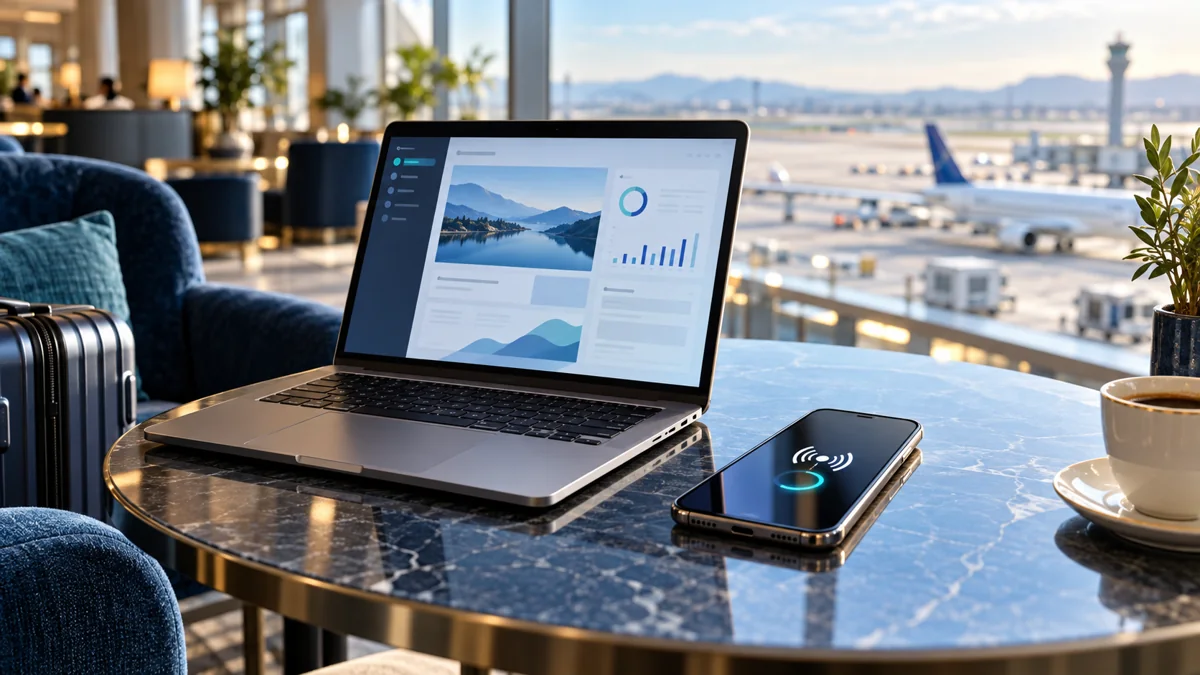
An eSIM hotspot shares a compatible phone’s cellular connection with other devices when the tariff permits tethering and enough data is available. A travel eSIM can often provide mobile internet to a laptop, tablet or another phone through a personal hotspot. The smartphone connects to a supported cellular network and shares that connection with nearby devices using Wi-Fi, Bluetooth or a cable, depending on the device. However, hotspot use is not guaranteed under every tariff.
Two conditions must be met: the smartphone must support tethering, and the mobile-data service must permit it. A package may provide data directly to the phone while placing restrictions on sharing it with other devices. Check the rules before relying on a hotspot for work.
Does Every eSIM Hotspot Allow Sharing?
Not every eSIM hotspot is allowed by every tariff; check tethering terms and any separate high-speed limits before buying. No. Many travel eSIM products support hotspot functionality, but some packages have specific restrictions or reduced allowances for tethering. Unlimited plans can also have different conditions from fixed-data packages. The exact tariff matters.
A supported smartphone does not override a restriction imposed by the mobile subscription. If the hotspot option is missing or connected devices cannot access the internet, the cause may involve the tariff, APN settings or device configuration. Investigate the specific issue rather than assuming the eSIM is defective.
An eSIM hotspot should be treated as a small mobile network with shared limits. Every connected device draws from the same cellular allowance, and the phone must remain powered and within local Wi-Fi range. If the host phone loses signal on a train or in a tunnel, the laptop also loses its internet connection. For important work, test the connection at the accommodation before a meeting. A separate power bank can extend battery time, but it cannot correct an absent partner network.
How Does an eSIM Hotspot Work?
An eSIM hotspot routes the phone's supported cellular connection to nearby devices over Wi-Fi, USB or Bluetooth where available. The phone uses the eSIM's cellular connection as its internet source. It then shares that connection with other devices through a local tethering method. Data consumed by connected devices counts according to the mobile plan's usage rules.
For example, a laptop connected to a phone's Wi-Fi hotspot can browse the internet and participate in video meetings. However, it may also download updates or synchronize files automatically. Hotspot data usage can rise much faster than ordinary phone browsing.
An eSIM hotspot on iPhone should be secured with a strong password before guests connect. The phone's travel line must be the actual cellular-data source, not the home subscription.
A hotspot can help — with limits
Useful for
- Connecting a laptop where mobile coverage is available.
- Sharing data when the plan explicitly permits tethering.
Check first
- Laptop updates and cloud sync can consume your allowance.
- Speed, sharing limits and battery life affect practical use.
How to Turn On Hotspot on iPhone
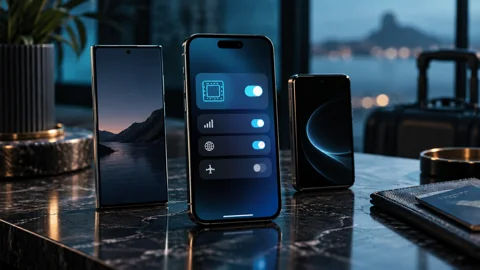
To use an eSIM hotspot on iPhone, select the travel line as cellular data and enable Personal Hotspot if your provider permits it. On a compatible iPhone, hotspot sharing is managed through the Personal Hotspot settings. First ensure that the travel eSIM is selected as the intended cellular-data line. Then open Settings, choose Personal Hotspot and enable Allow Others to Join where that option is available.
The receiving device can connect using the displayed Wi-Fi network name and password. An eSIM hotspot should also be tested with the actual laptop before relying on it for an important meeting. Some Apple devices can use additional connection methods. Actual menu availability depends on the carrier, device and software version.
If the Personal Hotspot option is missing, verify that the plan supports tethering. The provider may also require a specific APN for hotspot access. Do not change APN information by guessing; use the settings supplied for the selected service.
An eSIM hotspot on Android uses the selected data subscription, while the exact menu path changes by manufacturer. Test one receiving device before adding others.
How to Share eSIM Data on Android
On Android, an eSIM hotspot usually starts from Hotspot & tethering or Mobile Hotspot after the intended travel SIM is selected for data. On many Android phones, open Settings and find Hotspot & tethering or Mobile Hotspot. Make sure the travel eSIM is the active mobile-data line and then enable Wi-Fi hotspot. The exact menu path varies by manufacturer and software.
On supported Google Pixel phones, the relevant settings are generally under Network & internet, followed by Hotspot & tethering. Samsung Galaxy devices commonly offer Mobile Hotspot within the Connections settings. Choose a strong password before allowing another device to connect.
Some Android devices also offer USB or Bluetooth tethering. An eSIM hotspot shared by cable can be practical when Wi-Fi is crowded, provided the device and plan allow tethering. These methods can be useful when Wi-Fi hotspot sharing is unavailable or less convenient. Carrier restrictions still apply.
When an eSIM hotspot fails but phone browsing works, check the provider's tethering policy before editing any APN. A missing permission cannot be fixed with guessed settings.
What Is an APN and Why Can It Affect Hotspot?
An eSIM hotspot may require the issuer's APN settings, but replacing values with random internet instructions can stop mobile data from working. An Access Point Name, or APN, defines connection settings used by the mobile service. Many eSIM profiles configure the required information automatically. Some require manual settings, and hotspot access may depend on matching APN details.
If the phone has cellular internet but the connected laptop does not, check the provider's hotspot and APN documentation. Do not replace the supplied values with unrelated internet instructions. Incorrect settings can prevent the service from connecting.
Restarting the hotspot after applying valid settings may help. If the problem persists, contact the service provider with the device model and error details.
For an eSIM hotspot used by two travelers, the allowance can disappear sooner than expected because each device may run independent backups and automatic media downloads. Before enabling tethering, ask each user to disable nonessential cloud transfers. A strong password helps prevent uninvited connections. Some phones show which devices are connected, and checking that list can identify unexpected consumption. Monitor the package balance after the first extended session rather than assuming a daily estimate still applies.
How Much Data Does a Laptop Hotspot Use?
An eSIM hotspot used by a laptop can consume large amounts of data through updates, meetings and cloud synchronization. Hotspot consumption depends on what the connected device does. Ordinary web pages and email may require relatively little data, while video calls, cloud synchronization and software updates can consume much more. Laptop operating systems often transfer data without a visible browser window.
| Hotspot activity | Typical data impact |
|---|---|
| Email and light browsing | Relatively low |
| Cloud documents | Low to moderate, depending on files |
| Video meetings | Moderate to high |
| Streaming HD video | High |
| Operating system updates | Potentially very high |
| Cloud backup | Potentially very high |
These categories are qualitative guidance, not fixed measurements. Actual usage varies with file sizes, settings and service quality.
Before connecting a laptop, pause unnecessary updates and backups. Consider using metered-network settings where supported. Monitor the phone's data statistics and the travel package balance.
An eSIM hotspot with an unlimited label may still apply high-speed or tethering thresholds. Compare the usable shared speed rather than assuming every connected device gets full performance.
How much data should you plan for?
A simple planning estimate, based on your own expected use.
Can You Share an Unlimited eSIM With Multiple Devices?
Sharing an unlimited eSIM hotspot can still be restricted by throttling, fair-use rules or a separate tethering allowance. Sometimes, but the hotspot policy should be checked explicitly. Some unlimited plans allow tethering subject to fair use, while others restrict excessive sharing or apply high-speed thresholds. Several connected devices can use data rapidly.
An unlimited label does not guarantee unlimited full-speed tethering. Reduced speeds can make video meetings or large file transfers difficult. Compare the high-speed allowance before selecting a plan for professional use.
What If Your eSIM Hotspot Is Not Working?
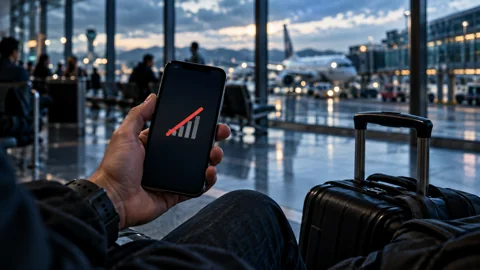
If your eSIM hotspot is not working, confirm cellular internet on the phone first, then check permission, APN, password and the connected device. Start by confirming that the phone itself has working mobile internet through the travel eSIM. Then verify that the plan permits hotspot sharing and that the intended data line is active. If the phone works but the laptop does not, investigate the local hotspot connection.
Check the password, connection method and provider-specified APN. Restart the hotspot and reconnect the receiving device. If the issue continues, test another receiving device to distinguish a phone issue from a laptop issue.
Avoid resetting all network settings as an initial step. Such resets can affect stored network configurations and other connections. Use targeted troubleshooting first.
A suitable eSIM hotspot can serve ordinary email, collaboration documents and occasional meetings when the partner network has adequate signal. It remains a best-effort mobile connection, not a guaranteed fixed broadband replacement. Video calls require upload performance as well as download speed, and congestion can change quickly. Store critical documents offline, use accommodation Wi-Fi as a backup where reliable and avoid scheduling software updates during work sessions. Compare plans using documented high-speed data rather than an unlimited marketing label.
Is a Travel eSIM Hotspot Good Enough for Remote Work?
An eSIM hotspot can support remote work where coverage is reliable and enough high-speed data is available, but it is not guaranteed office-grade broadband. It can be sufficient when the local network is reliable, the plan permits tethering and the allowance supports the workload. However, mobile speed and latency can fluctuate with congestion and location. A travel eSIM does not provide a guaranteed office-grade connection.
Check coverage at the accommodation and test connectivity before critical meetings. An eSIM hotspot works best when local coverage, high-speed allowance and tethering rules match the workload. Keep an alternative internet option where work cannot tolerate an outage. A smaller but reliable local connection may be more useful than an unlimited package on a weak network.
Protect Your Hotspot Allowance Before Connecting a Laptop
For an eSIM hotspot, set the laptop connection as metered when supported, pause automatic cloud backups and postpone operating-system downloads. Use a strong Wi-Fi password, disconnect unfamiliar devices and monitor usage through the mobile account. These steps prevent background software transfers from consuming the high-speed allowance intended for navigation and work.
For an eSIM hotspot shared by a group, record the data balance before connecting multiple phones. Unexpected cloud transfers can use the shared allowance quickly.
Frequently Asked Questions
These answers cover eSIM hotspot support, usage, common failures and whether two travelers can share one connection.
Can I use a travel eSIM as a hotspot?
Yes, an eSIM hotspot can work with a travel plan if tethering is included and the phone supports sharing the connection. Often, yes, if the device and plan permit tethering. Check the tariff details before purchasing.
Does hotspot use consume more eSIM data?
An eSIM hotspot itself is not necessarily wasteful, but connected laptops often create higher data usage than ordinary phone browsing. The act of sharing is not necessarily the main factor; connected devices can perform heavy background activities. Laptops and multiple users may consume data much faster than a single phone.
Why is Personal Hotspot missing on my iPhone?
A missing iPhone Personal Hotspot option can indicate that eSIM hotspot provisioning or APN settings need confirmation with the provider. The feature can depend on carrier support, plan settings and device configuration. Check the selected data line and provider instructions. A hotspot APN may be required.
Can I share unlimited eSIM data with a laptop?
An unlimited eSIM hotspot is available only under a tariff that allows tethering; unlimited data does not automatically mean unlimited hotspot speed. Possibly, but unlimited plans may impose tethering or high-speed restrictions. Read the exact fair-use policy.
Can two people use one travel eSIM through hotspot?
Two travelers can share one eSIM hotspot when permitted, although both rely on the host phone's coverage, battery and allowance. Yes, when permitted and technically supported. Both users share the same mobile-data allowance and available connection. Coverage and battery life remain practical limitations.
My quick checklist
Tick off the checks you have completed. Your choices stay in this browser.
0 of 3 checked
Official device support
Menu names and availability can vary by device, software and market. Consult current manufacturer instructions for your exact model.